Temporary proxies / VPNs
Temporary proxies/VPNs are proxies and VPNs that are added directly to the Connection settings for a profile and that cannot be saved and selected later from the list or the Proxies and VPN tab.
All subscription tiers support an unlimited number of temporary proxies and VPNs. You can add the necessary temporary proxy or VPN when creating or editing a profile. Octo supports IPv4 and IPv6 proxies and WireGuard and AmneziaWG VPN configurations.
A temporary proxy or VPN can be saved to the Proxy Manager list. To do this, tick the "Save to the Proxy Manager" checkbox, add a name for the proxy/VPN, and confirm. The proxy/VPN will be added to the Proxy Manager and will become available for quick selection.
If necessary, URL for IP Change allows you to add a link to change the IP in the supported formats:
https://65.108.85.95:8001
http://192.168.0.0
http://localhost
http://example.com:8080/api/param=123
https://[2001:7334:0db8:85a3:1200::8a2e:0370]/api/param=123
http://[2001:0db8:85a3:0000:0000:8a2e:0370:7334]:8001
You can find our video tutorial covering temporary proxies here:
Quick filling-in of proxy data
To quickly fill in the proxy data, use the following template:
| IPv4 Proxy | IPv6 Proxy |
|---|---|
| protocol://login:password@host:port | login:password@[host]:port |
| protocol://host:port:login:password | [host]:port:login:password |
| login:password@host:port | protocol://login:password@[host]:port |
| host:port:login:password | protocol://[host]:port:login:password |
Make sure your proxy data follows the pattern above, and using hot keys (e.g, CTRL + V), paste the proxy data into the Host field. SOCKS5, HTTPS, HTTP, and SSH protocols are supported.
For example:
5.8.1.1:5555:Kso31s:CLdUQ
Kso31s:CLdUQ:5.8.1.1:5555
socks5://5.8.1.1:5555:Kso31s:CLdUQ
socks5://Kso31s:CLdUQ:5.8.1.1:5555
https://Kso31s:CLdUQ:5.8.1.1:5555
https://5.8.1.1:5555:Kso31s:CLdUQ
http://Kso31s:CLdUQ:5.8.1.1:5555
http://5.8.1.1:5555:Kso31s:CLdUQ
ssh://Kso31s:CLdUQ:5.8.1.1:5555
ssh://5.8.1.1:5555:Kso31s:CLdUQ
For the Team and Advanced subscriptions, access to temporary proxies and VPNs for all team members is enabled by default.
Before adding a proxy to the saved proxies list (the Proxy Manager), you can check it by clicking Check proxy. If the proxy is successfully verified, a green "Available" notification will be displayed with the flag and the ISO code of the proxy geolocation. If the proxy supports UDP traffic, a UDP icon will appear next to the proxy status icon. Otherwise, a red "Unavailable" notification will be displayed.
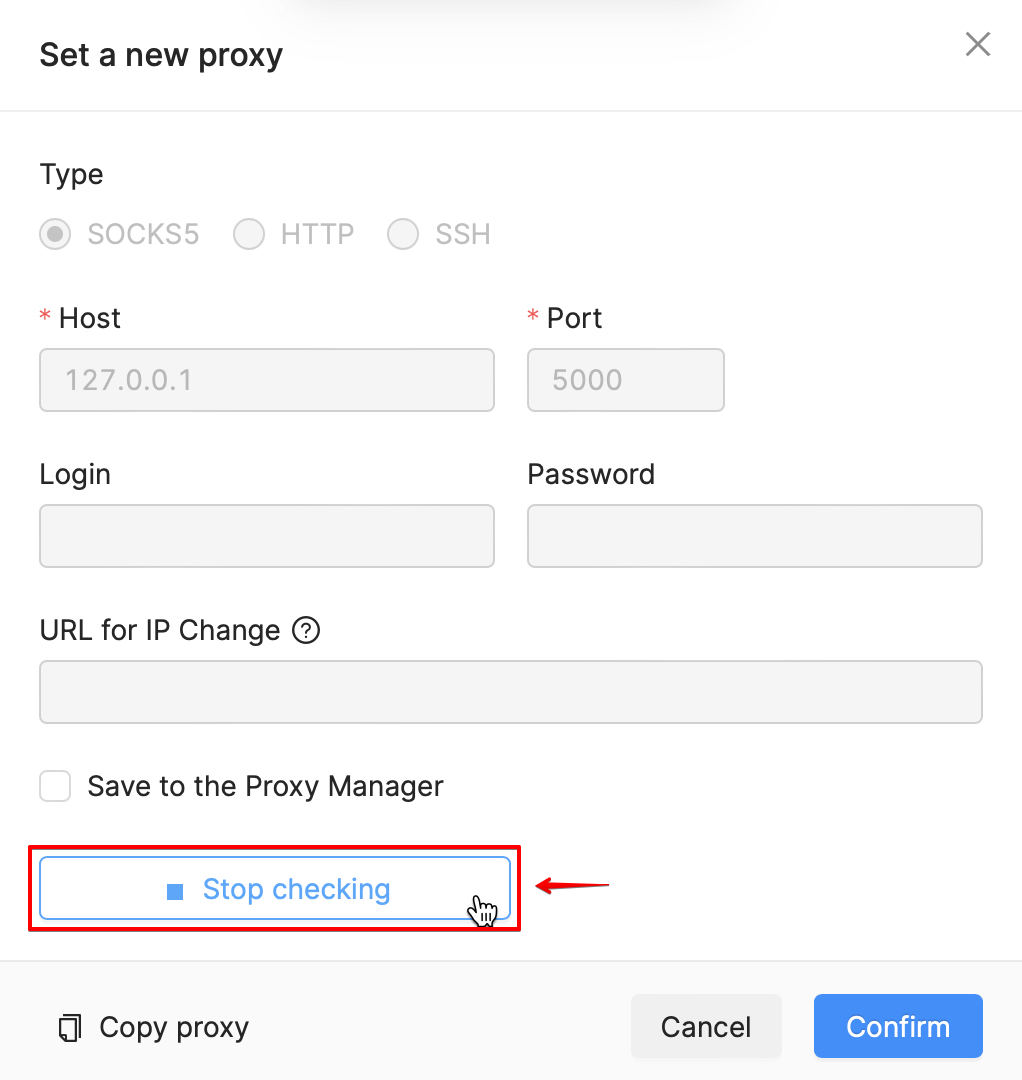
If you hover the mouse over the "Check Proxy" button during the check, the "Stop Checking" button will appear. You can interrupt the check by clicking on it.
If a proxy is in fact functioning, but does not pass the test, you need to change your Internet connection (use your mobile connection or enable a VPN). It is possible that the ISP blocks the proxy checker URL. The VPN (or mobile Internet) will have a different ISP, which will not block the proxy checker URL.
Clicking on the "Copy Proxy" button will copy the proxy data to the clipboard in the following format:
protocol://login:password@host:port
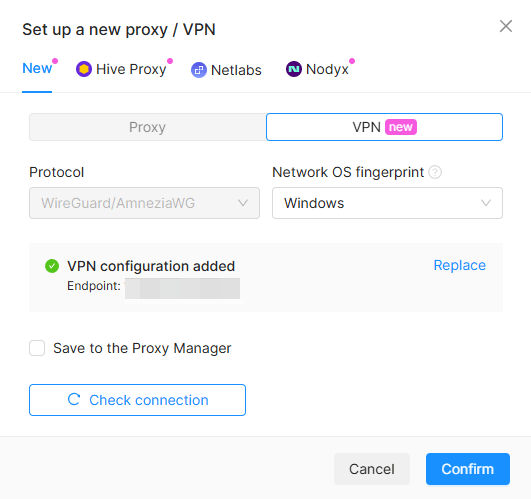
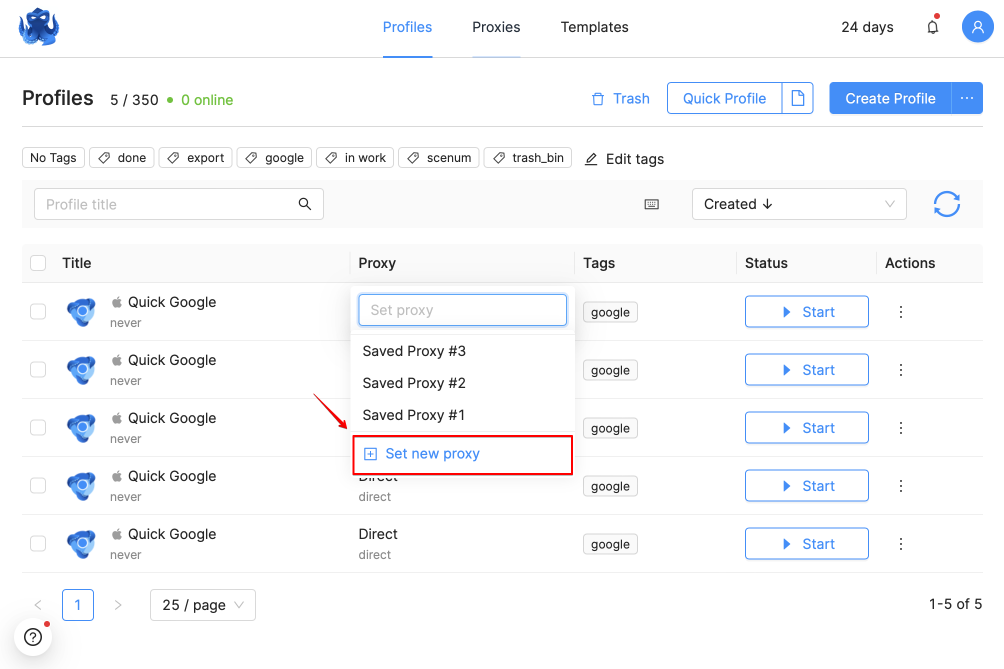
You can add a temporary proxy/VPN by clicking on the "Direct" button in the profile list, then click on "Set a new proxy/VPN" at the bottom of the drop-down list. Do not toggle the "Save to the list" checkbox on.
VPN for profiles
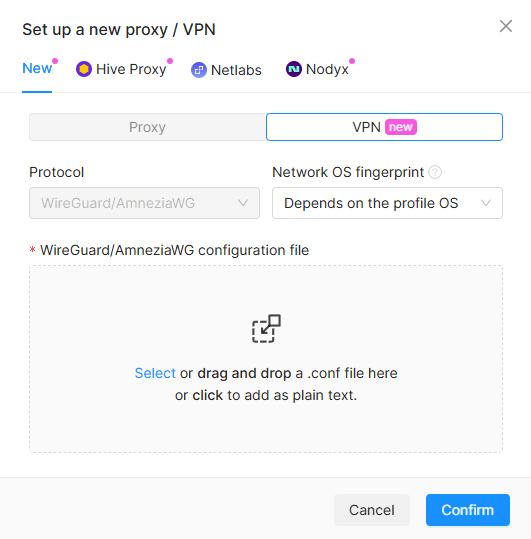
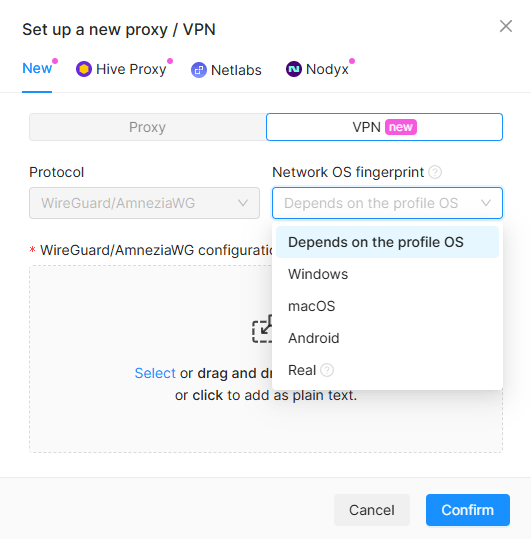
You can assign a VPN to any Octo profile just like a proxy. To do this, switch to the VPN tab in the new connection window and add the configuration as a .conf file or paste it as text. Octo currently supports WireGuard and AmneziaWG, and more protocols will be added in the future. You can save a VPN to the "Proxies and VPNs" list and reuse it in other profiles, just like a regular proxy.
You can assign different VPNs to different profiles and run them simultaneously. Proxies will still continue to work, and both types of connections will be included in the same list. VPNs are marked with the "VPN" tag in front of their names in the profile and template lists, as well as in the list of VPN connections.
Octo Browser supports the following VPN configuration format:
[Interface]
Address = 10.8.0.2/32
DNS = 1.1.1.1, 1.0.0.1
PrivateKey = <CLIENT_PRIVATE_KEY>
MTU = 1376

# Obfuscation parameters must match the server settings
Jc = 4
Jmin = 10
Jmax = 50
S1 = 15
S2 = 15
S3 = 15
S4 = 15
H1 = <H1_RANGE>
H2 = <H2_RANGE>
H3 = <H3_RANGE>
H4 = <H4_RANGE>
I1 = <CPS_SIGNATURE>

[Peer]
PublicKey = <SERVER_PUBLIC_KEY>
PresharedKey = <PRESHARED_KEY>
AllowedIPs = 0.0.0.0/0, ::/0
Endpoint = <SERVER_IP>:<PORT>
PersistentKeepalive = 25
IMPORTANT!
A single VPN configuration can be assigned to multiple profiles, which will all use it simultaneously, but only in the context of a single device: the configuration specifies a single connection with a single set of keys, and the server considers only one address to be active at any given time. If this setup is used simultaneously on different devices, data packets may be lost.
OS spoofing at the network level is available for profiles using VPN: Windows, macOS, Android, or the device's actual operating system.
After adding a VPN configuration to the profile, Octo will automatically test the connection and display the outgoing IP address and port.