Switching between accounts
This section describes how to switch between accounts in Octo Browser. This feature allows you to add multiple Octo Browser accounts and quickly switch between them without having to re-enter your username and password.
Adding a new account
Click on the email address of your current account in the upper left corner.
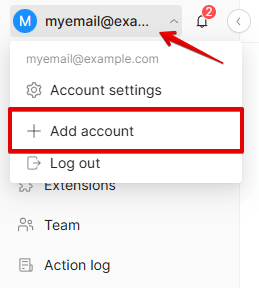
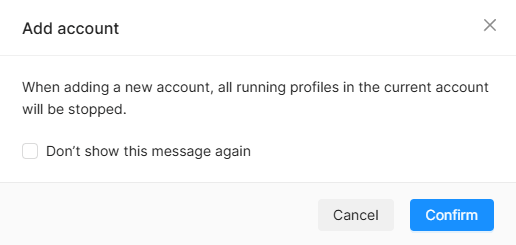
Click "Add account" in the drop-down menu. If there are any running profiles at the time of adding a new account, a warning "when adding a new account, all running profiles of the current account will be stopped" will appear. Click "Confirm."
Wait for the running profiles to stop. Enter the email address and password of your new account, or select it from the list of saved accounts in the "or sign in as" section.
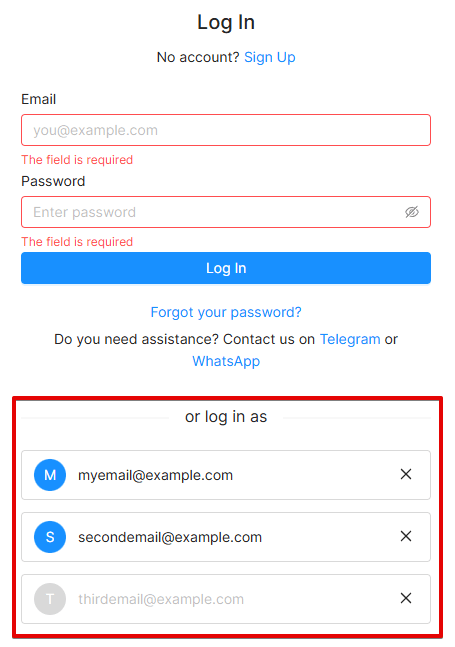
Once you log into another account, it will appear in the quick access list.
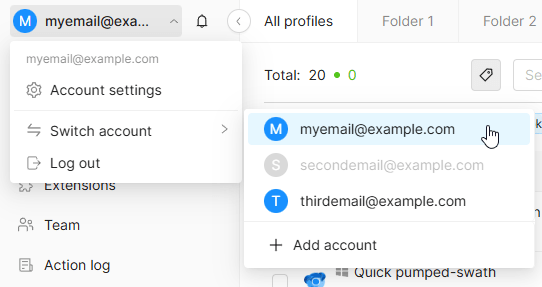
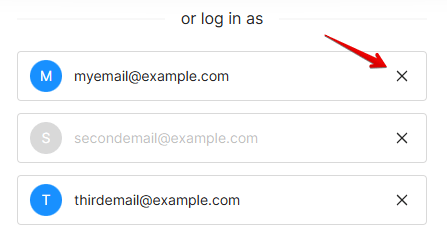
The account you are currently logged into is highlighted in blue. A logged-out account is grayed out.
Switching between accounts
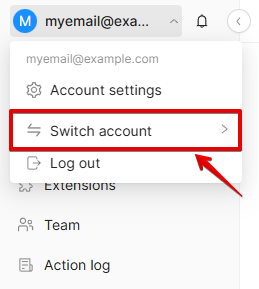
Click on the email address of your current account in the upper left corner. Hover over "Switch accounts" to open the list of your added accounts.
Choose the account you need. A warning "switching accounts will stop all running profiles" will appear. Click "Confirm."
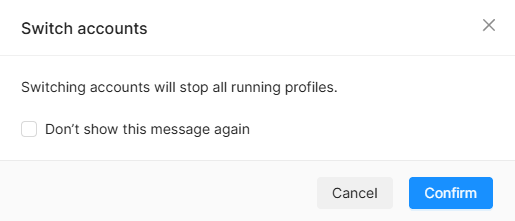
Wait until all currently running profiles stop, and the browser will switch to the chosen account.
Logging out of an Octo account
You can only log out of a currently active Octo account. Click on the email address of your current account in the upper-left corner and select "Log out." All currently running profiles will be stopped, and you will be logged out of your current account.
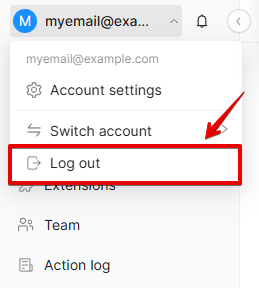
Once you log out, the account will remain in the quick access list but will become inactive. To use the quick switch feature for this account, you'll need to sign into this account again.
Removing an account from the quick switch list
To remove an account from the quick swith list, sign out of the currently active account. In the account login window, click the X icon next to the account you want to remove. Once you log out, you won't be able to quickly switch to this account. You'll need to re-enter your username and password to log in.