Working with folders
Folders are a way to organize profiles and manage access rights within your team. Folders are displayed as tabs above the profile list. A user can create a folder, move profiles to it, and set up access rights for team members.
The "All Profiles" tab displays all profiles that a team member has access to.
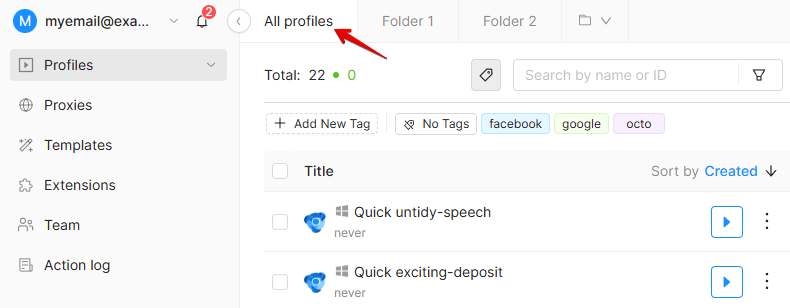
Creating a folder
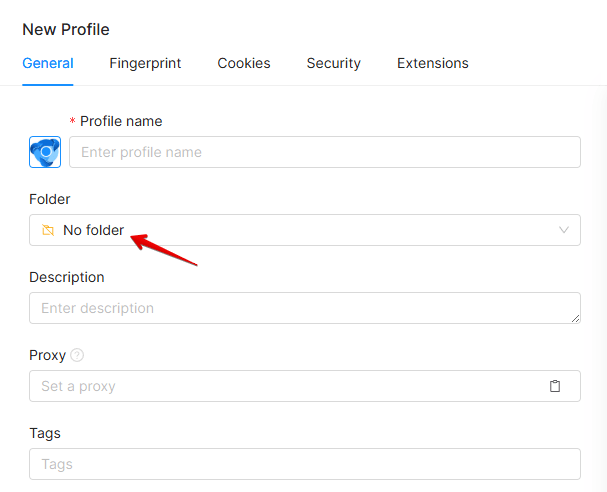
You can create a new folder and put a profile into it in several ways. For example, when creating or editing a profile, click the folder field, type the name of the new folder, and click "Create folder." In the "New Folder" window that opens, enter a name for the folder and click "Create folder" or press Enter. After that, the folder will appear on the list and you can put a profile into it by clicking on the folder.
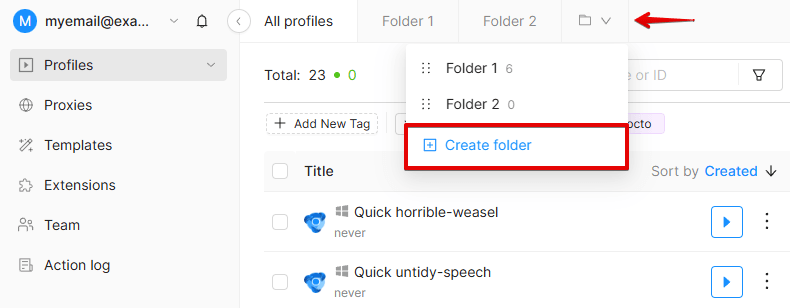
You can also create a folder on the profile list page. Click "Create folder," enter the folder name in the form that opens, and confirm. A new folder will appear in the bar above the profile list.
Folders that extend beyond the screen size are moved to a drop-down list at the end of the bar. By default, the last selected folder will be chosen.
You can also create a folder for a specific profile in the "Folder" column.
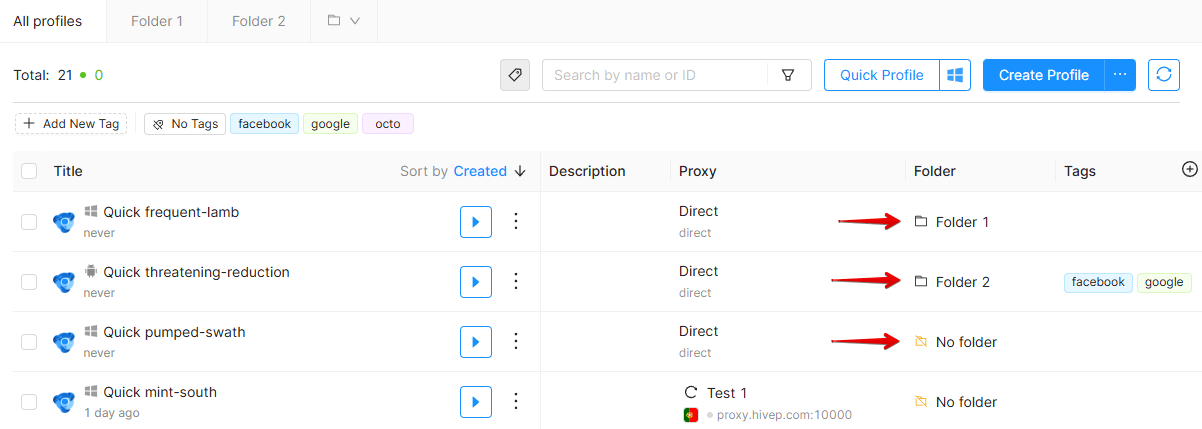
To show this column, click the + icon in the profile list and select "Folder."
Default folder
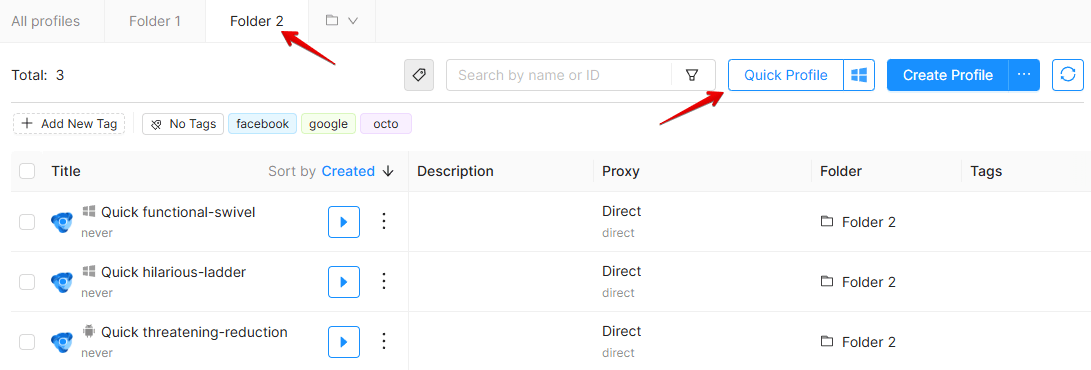
When you use the "Quick Profile" button for the first time, Octo will prompt you to select the default folder. All subsequent quick profiles will be automatically placed in this folder.
If a team member has permission to create profiles without a folder, quick profiles will always be created in the common profile list. If a team member does not have such permission, they will need to select the folder where the profile will be saved when creating a quick profile for the first time. Once you've created a profile, you can change its folder. If the folder is not changed, this prompt will appear every time you create a quick profile.

To create a quick profile in another folder, you need to navigate to that folder and create a profile there.
IMPORTANT!
- Each profile can be assigned to one folder only.
- Tags and folders can be used together. When access rights are managed using folders, tags do not affect the visibility of profiles and function as statuses or labels for filtering profiles within folders. All tags are shared between all folders.
- The maximum number of folders depends on your subscription level.
- The folders are available via the API.
- You can further filter profiles by folder in the "All profiles" section.
- A folder name cannot be longer than 20 characters.
Deleting a folder
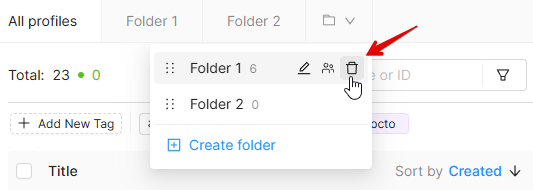
To delete a folder, expand the folder drop-down list in the upper-right corner. Hover your cursor over the folder you would like to delete and click the trash icon. You can also change the folder name by clicking the pencil icon here.
If you delete a folder, the profiles in it will not be deleted. They are removed from the folder and remain in the "All profiles" list.
IMPORTANT!
If a team member does not have access to the "All profiles" list, profiles without a folder will not be visible to them.
Moving profiles to a folder
You can move a profile to a folder in several ways:
- When creating or editing a profile.
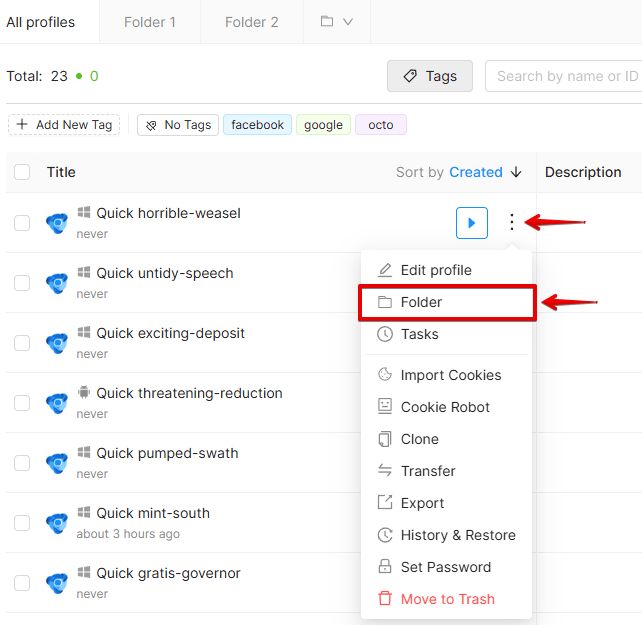
- Using the "Folder" column of the desired profile on the profile list page.
- Using the profile context menu. Tap the three dots next to the desired profile and select a folder.
- Via the Bulk Actions menu.
- Using profile templates.
- When creating profiles in bulk.
- When importing profiles.
- Via the API.
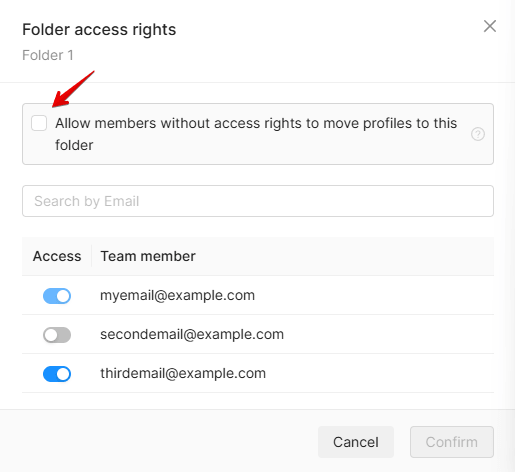
To allow any team member to move profiles to this folder, enable the "Allow members without access rights to move profiles to this folder" toggle.
If this setting is enabled, team members will be able to see the folder name in the list when moving a profile, but they will not be able to view its contents. Only folders for which this permission is enabled will appear on the list. This makes it easy to transfer profiles between team members with different responsibilities. You won't be able to move a profile to a folder that you don't have access to or permission to move files to.
Setting up folder access
Each team member is granted access to specific folders and can see only those folders. A team member can see only the profiles from the folders available to them in the "All profiles" section.
Please note: if a team member does not have access at least to one folder, they will not be able to see any profiles.
You can set up folder access rights directly in the folder interface without going to the "Team" section. To do this, open the folder's context menu and select "Folder access rights."
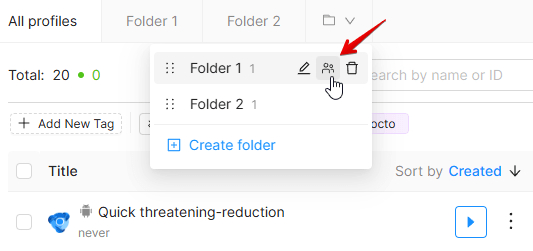
In the window that opens, you can search for team members by email, including those who haven't accepted the invitation yet.
You can grant access to specific team members or make the folder available for profile transfer to all team members regardless of their access rights.
For more information on granting access to folders, visit the Team Settings page.